


PWA install guide

How to install Gophin.app on your phone

Follow this iOS and Android walkthrough to add Gophin to your home screen with a single tap. The experience runs full-screen, caches your swim intel, and updates automatically.

Open Gophin

iPhone & iPad

Use Safari’s “Add to Home Screen” option.

Android

Chrome, Samsung Internet, and Edge all support one-tap install.

Why install Gophin as a Progressive Web App?

Gophin behaves like a native experience while staying lightweight. These benefits kick in as soon as you add it to your home screen.

Native app feel

Enjoy a full-screen experience without the browser chrome.

Fast loading

The app caches essential data for instant startup.

Push notifications

Stay updated with meet results and swim insights.

No app store required

Install directly from the browser—no accounts or downloads.

Lightweight

Only 1–5 MB instead of the heavy footprint of native apps.

Auto-updates

Always launch the most recent version without manual updates.

iOS guide

Install on iPhone or iPad (Safari only)

⚠ “Add to Home Screen” only exists in Safari. Chrome, Firefox, or other browsers on iOS do not expose PWA install prompts.

Step 1: Open Safari and navigate to gophin.app

  1. Launch Safari on your iPhone or iPad.
  2. Type gophin.app in the address bar and tap Go.
  3. Confirm that the secure lock icon appears and the headline loads.

What to look for

  • Make sure Safari (the blue compass) is the active browser.
  • Check for the HTTPS lock indicator beside the domain.
Step 2: Tap the share button

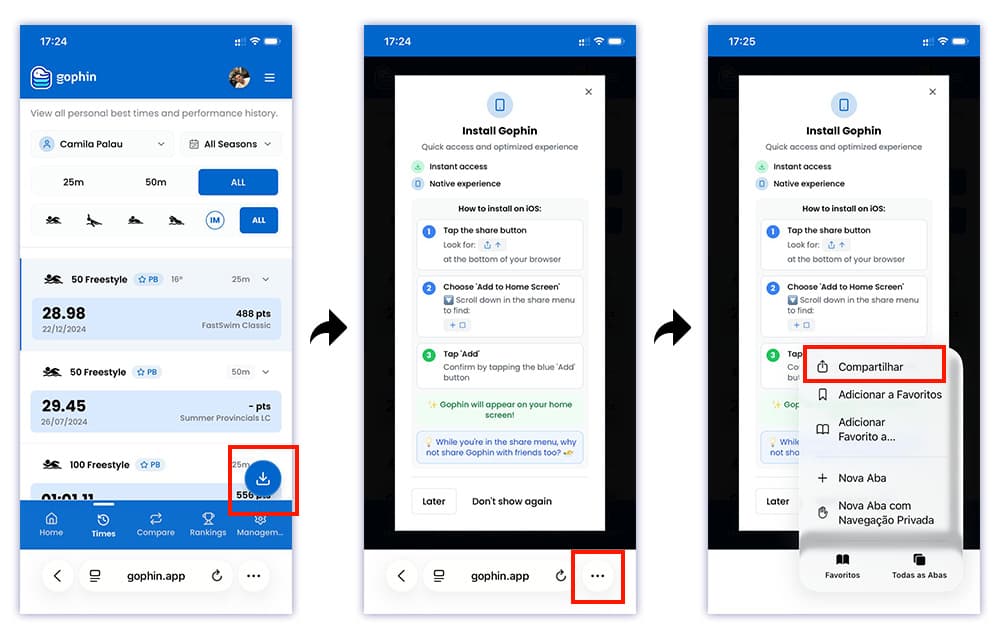
Tap the blue install bubble at the bottom if it appears, then hit the share icon — a square with an upward arrow — labeled Share in the Safari toolbar.

  • iPhone: bottom center of the Safari toolbar.
  • iPad: upper-right corner of the toolbar.
Step 2 — tap the blue install bubble, then choose the Share icon in the Safari toolbar.

Pro tip: scroll up slightly if the toolbar is hidden.

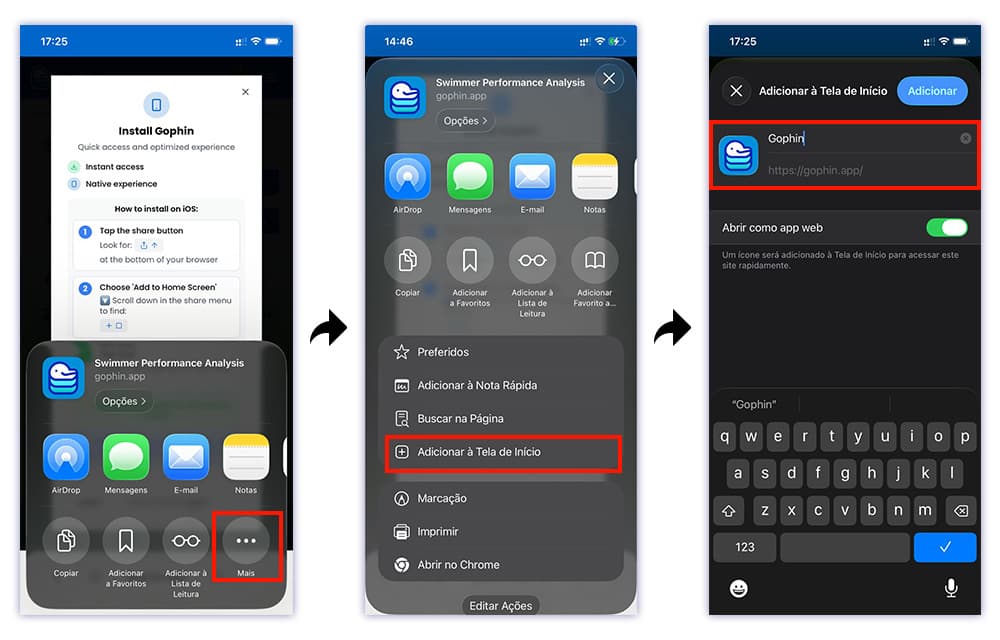
Step 3: Select “Add to Home Screen”

Within the share sheet, scroll down until you see Add to Home Screen.

Step 3 — scroll until “Add to Home Screen” appears in the share sheet.

Step 4: Confirm and tap “Add”

  1. Customize the app name if desired.
  2. Tap Add in the upper-right corner.
✅ Installation complete: Find the Gophin icon on your home screen and launch it like any native app.

Android guide

Install on Android phones and tablets

Chrome, Samsung Internet, and most Chromium browsers offer a one-tap install.

Method 1: Google Chrome (recommended)

  1. Open Chrome and navigate to gophin.app.
  2. Tap the three dots (⋼) in the upper-right corner.
  3. Select Add to Home screen or Install app.
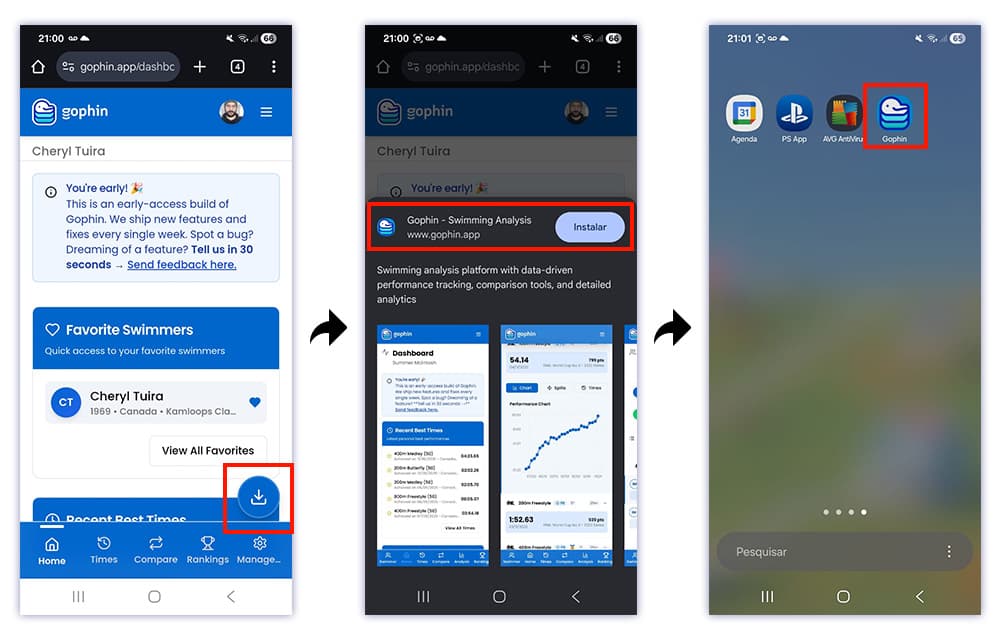
  4. Confirm in the popup dialog and tap Add or Install.
Method 1 — tap the “Install/Instalar” bubble, confirm in the dialog, and the icon lands on your Android home screen.

Tip: If Chrome surfaces “Install app” (displayed as “Instalar” in Portuguese, as shown), it has detected full PWA support and enables the richest experience.

Method 2: Samsung Internet

  1. Open Samsung Internet and load gophin.app.
  2. Tap the menu icon (☰) at the bottom toolbar.
  3. Choose Add page to → Home screen.
  4. Confirm the name and tap Add.

Automatic install banner

Chrome may display a floating prompt labeled “Add Gophin to Home screen.” Tap Install to finish instantly—no menu required.

✅ Android installation complete: Gophin now appears on your home screen and inside the app drawer with automatic updates enabled.

Feature comparison: PWA vs. native app

FeatureGophin PWATraditional app
InstallationInstant from the browserDownload from store
Storage space~1–5 MB50–200+ MB
UpdatesAutomaticRequires store updates
Full screen modeYesYes
Home screen iconYesYes
Works offlineCached contentYes
Push notificationsSupportedSupported
Store account requiredNoYes

Frequently asked questions

Is Gophin safe to install as a PWA?

Yes. PWAs run inside a secure sandbox, rely on HTTPS, and only access device capabilities after you grant permission.

Will the PWA use a lot of storage?

No. Expect roughly 1–5 MB, significantly smaller than a traditional native build.

How do I update the PWA?

Updates happen automatically. Each launch checks for new assets in the background.

Can I uninstall the PWA?

On iOS, long-press the icon and choose “Remove App.” On Android, long-press and tap “Uninstall,” or remove it via the system app settings.

Why doesn’t “Add to Home Screen” appear on my iPhone?

The shortcut only exists in Safari. Open gophin.app in Safari, then scroll within the share sheet to see the option.

Will I receive push notifications?

Android supports them immediately. iOS requires version 16.4 or later to enable PWA notifications in system settings.

Does the PWA work offline?

Recently viewed swimmer data and recaps remain cached for offline reference. A network connection is needed to sync fresh data.

Can I install Gophin on desktop?

Yes. Chrome and Edge on macOS, Windows, and Linux show an install icon in the address bar or a dedicated “Install Gophin” menu item.

Troubleshooting

iPhone: “Add to Home Screen” missing

Confirm you are using Safari, then scroll in the share sheet. The option often sits below the fold.

Android: Install option missing

Clear Chrome’s cache or open an incognito tab for a fresh visit. The install banner returns after a clean load.

App not updating

Close the app, swipe it away from the multitasking view, then reopen. If content still feels stale, uninstall and reinstall.

Quick reference card

iPhone & iPad (Safari)

  1. Open Safari and go to gophin.app.
  2. Tap the share button.
  3. Scroll and select “Add to Home Screen.”
  4. Tap “Add.”

Android (Chrome)

  1. Open Chrome and navigate to gophin.app.
  2. Tap the ⋼ menu.
  3. Select “Add to Home screen” or “Install app.”
  4. Confirm the dialog.

Need help? Email [email protected] or reach out through our contact page.

Ready to track your swimming?

Create your free account and see all your PBs, meet results, and progress in one place. No card needed.

Start Free →