Quick answer
You can follow more than one swimmer in one Gophin account. Open My swimmers, choose Follow a swimmer, search for each child's official name and follow the correct profile. Open each swimmer's times separately. Use the existing Groups feature if you want a family collection; each child's goals should still reflect their own age, events and experience.
Two children at the same meet can produce two very different weekends. One might earn a first legal 100 fly while the other edges closer to a national cut. Keeping both stories visible is useful. Turning them into a sibling leaderboard usually is not.
A family tracking routine should answer three questions quickly: which swimmer am I looking at, what happened at their latest meet, and what is their next meaningful step? You should not need separate spreadsheets or a second system for organising the family.
Start with one parent account
Sign in with the account you intend to use for your own viewing. Following a swimmer is a way to organise the profiles you look at; it does not mean you are creating or taking ownership of that athlete's official record.
Gophin's getting-started guide explains the initial setup. If you already followed one child during onboarding, keep that profile and add the others from My swimmers. You do not need to start the setup again for every child.
Sign in and find your family's swimmers
Follow each child carefully
Choose Follow a swimmer and search using the name that appears on official results. Use at least three letters. If several results look plausible, use the available filters and compare the birth year, country and club information before following.
Repeat the search for the next child. A useful check is to open each profile and confirm that its event history belongs to the right swimmer. Similar names are a reason to inspect the record, not follow the first result and hope.
If a profile or a recent meet is missing, do not create a second identity just to make the list look complete. Check the official results and ask support about a possible coverage or identity issue. Our missing-results guide describes that process.
Make My swimmers the family starting point
My swimmers brings the profiles you follow into one place. Select the child whose result you want to review, then open Times for that swimmer's best times and history. Before reading a chart or a standard, check the selected name again.
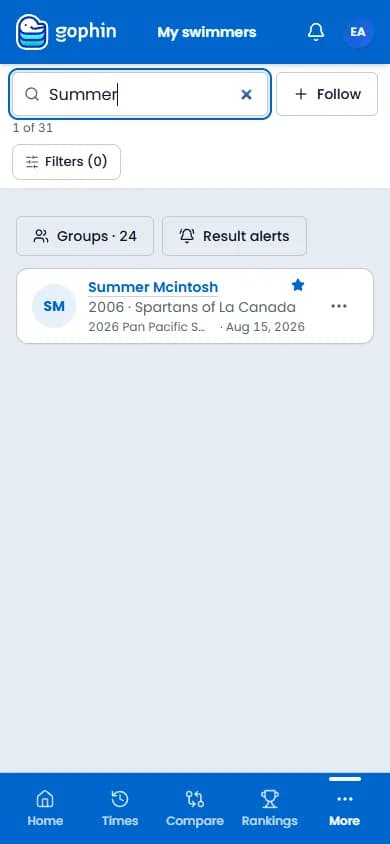
That name check sounds small, but it prevents a common family mix-up: comparing a younger child's performance against the category or course last used for an older sibling. A familiar page can retain context from a previous comparison, so verify the filters as well as the name.
Choose a main swimmer if that helps your usual starting view. It is a navigation preference, not an assessment of which child matters more. The other followed swimmers remain available from the list.
Use the existing Groups feature when it helps
For a family collection, choose Create group from My swimmers or open Groups. Use a clear name such as “Our swimmers” and select the intended members through the existing group controls. Groups organise swimmers you want to view together; they are not official club rosters.
You may not need a group if following two profiles already gives you a clear routine. Add it when the collection solves a real navigation problem, rather than creating a separate spreadsheet to mirror the same membership.
For side-by-side views, use Gophin's existing comparison features. Keep the question appropriate: comparing event availability or reviewing a shared meet is different from deciding which sibling is “better.” Age, category, pool course and experience still matter.
Give each swimmer a personal reference
After a meet, look at each child's own previous legal time in the same event and course. A personal best is a useful reference, but so is a season trend or a first attempt in an unfamiliar event.
Then check a chosen standard, if it is part of that swimmer's plan. In Compare → Standards, match the swimmer, set, category and pool. Two siblings can be working towards different levels without one having the more valuable weekend.
The standards comparison tutorial explains the controls. Use it to keep goals specific: one child may be targeting a cut while another is building a consistent race. The coach should help decide what is appropriate for each.
Build a short post-meet routine
Wait until results are available, then review one swimmer at a time. Confirm the event, course and legal result. Notice one improvement and one question for the coach. Repeat for the other child without carrying over the first child's targets.
Avoid promising that every meet will appear immediately. Result availability depends on publication and coverage. If a race has not arrived, keep the official result available rather than repeatedly adding the swimmer or assuming the account is broken.
Most importantly, ask whether the swimmer wants to review the numbers now. The account makes information easier to find; it does not require the family to analyse every race in the car. Our supportive-parent guide offers ways to keep that conversation constructive.
Questions families ask
Do I need a separate account to follow another child?
No. The same account can follow multiple swimmers. Following profiles and managing each person's own account are different actions; keep everyone's sign-in details separate.
Will a family group change the children's official clubs?
No. A personal group is an organisational tool, not a federation roster or an official club transfer.
What if both children have similar names in the search results?
Inspect birth year, country, club and event history before choosing. If the records remain ambiguous, use support rather than making a duplicate profile or guessing which identity holds the correct history.







Commentaires
Aucun commentaire pour l'instant. Les questions sur les temps, les compétitions ou l'app sont les bienvenues.